
About the Display
Switching the Display
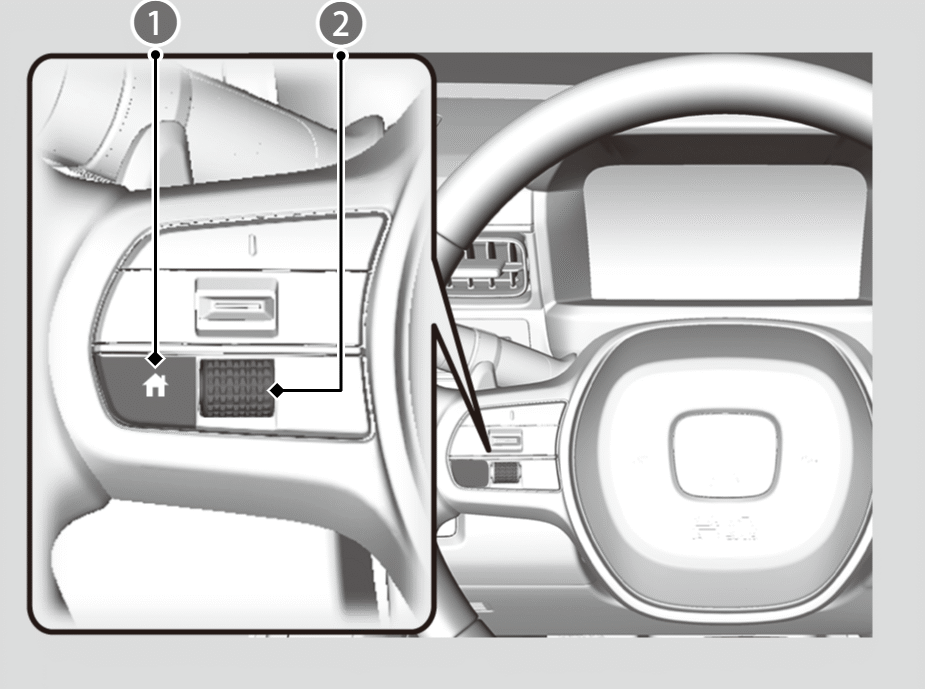

 (home) Button
Left Selector Wheel
Press the(home) button, then roll the left selector wheel to scroll to the content you want to see. Press the left selector wheel to see detailed information.
- Selecting Triple meter will display High Voltage Battery Temperature Gauge, POWER/CHARGE Gauge, and Tachometer or Instant Energy Consumption.
- You can add or delete the meter contents.
Simple
By selecting the simple mode, you can set the meter to display the minimum information necessary.
High Voltage Battery Temperature Gauge (BATT TEMP)
Displays the temperature of the High Voltage battery.
- Depending on the outside temperature, driving conditions, charging status, etc., the temperature of the High Voltage battery will change.
POWER/CHARGE Gauge
Display the status of electric motor output and High Voltage battery charging.
Tachometer (RPM)
Shows the number of virtual motor revolutions per minute.
When ECON, CITY, or NORMAL mode is turned on, the tachometer switches to showing instant energy consumption.
Instant Energy Consumption
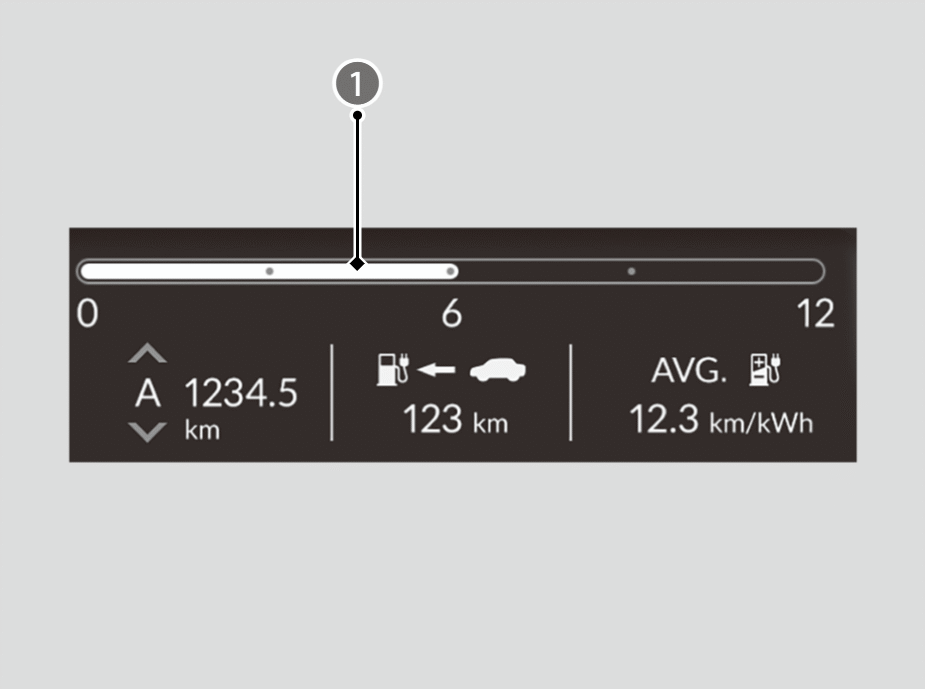
Instant Energy Consumption (Bar type)
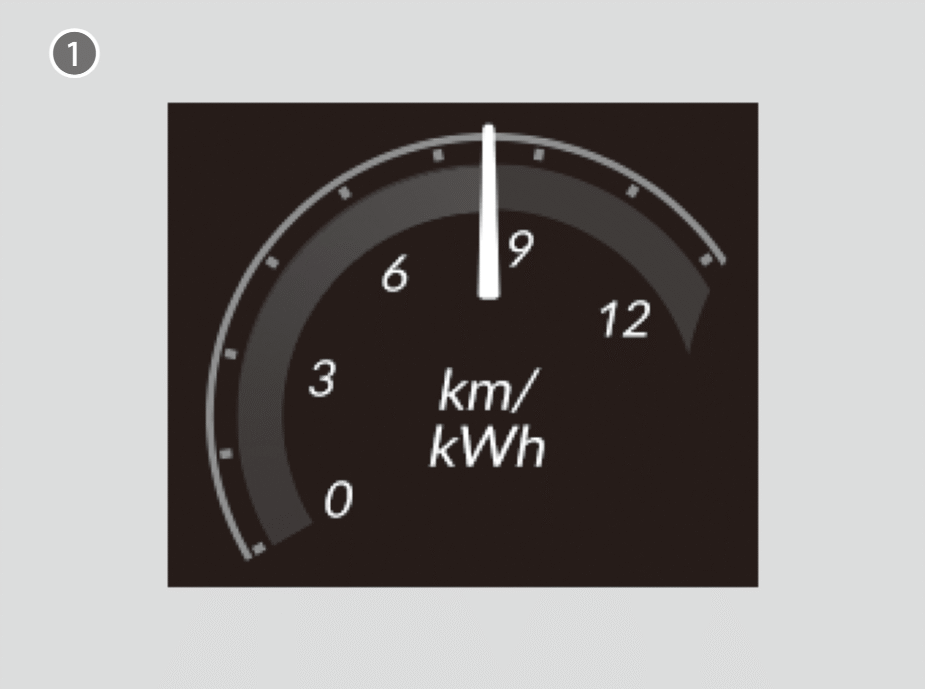
Instant Energy Consumption (Round type)
Shows the instant energy consumption as a bar graph.
When SPORT or BOOST mode is turned on, the display switches from round-type instant energy consumption to the tachometer.
Power Flow
Displays the motor output and whether the High Voltage battery is being charged.
Range
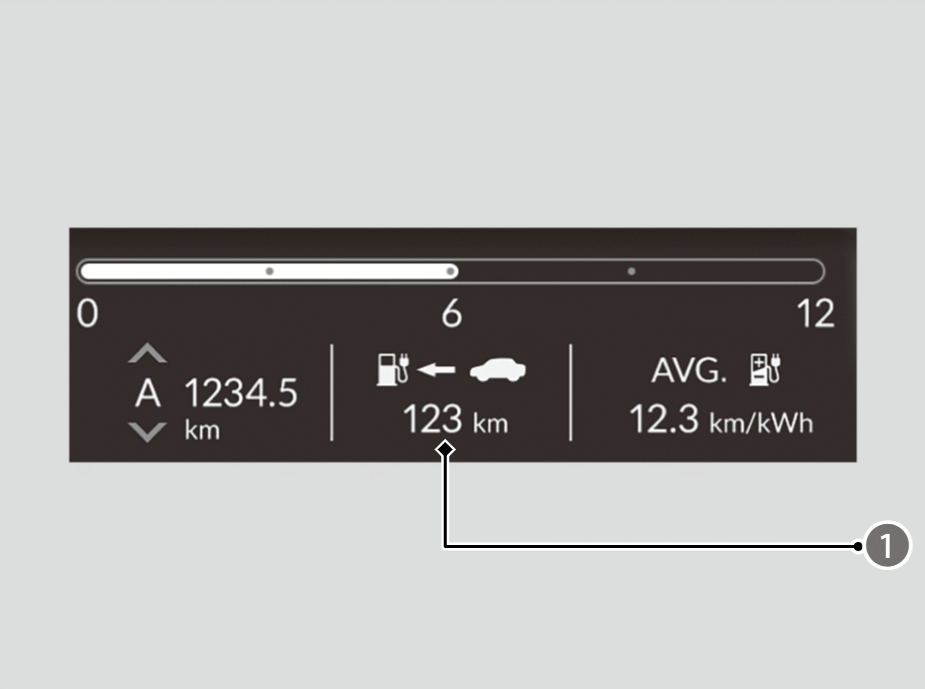
Range
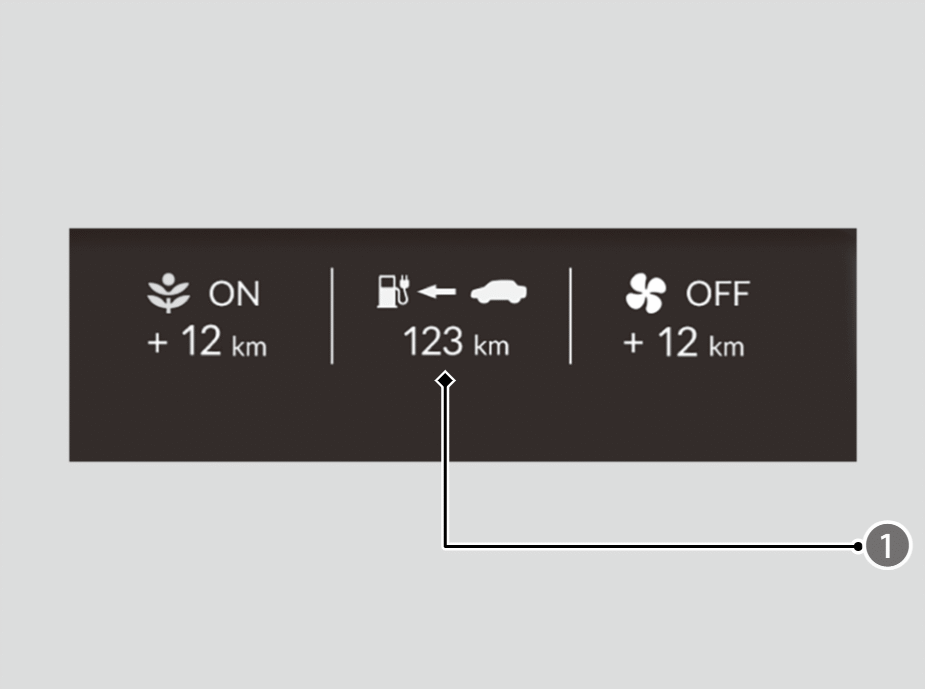
Range
Shows the estimated distance you can travel on the remaining power. This estimate is based on the energy consumption of your previous trips and the remaining charge of the High Voltage battery.
Displays the expected increase in range when ECON mode is turned on or the climate control system is turned off.
- The driving range displayed is only an estimate and may differ from the actual distance the vehicle can travel.
Trip Meter
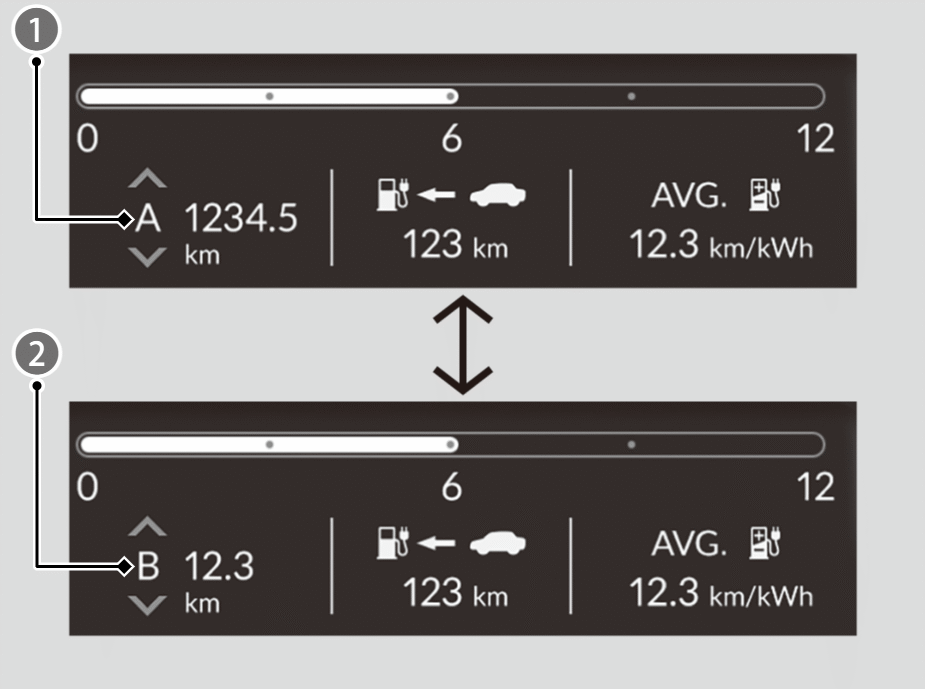
Trip Meter A
Trip Meter B
Shows the total distance driven since the last reset.
Roll the left selector wheel to switch between trip meter A and trip meter B.
Meters A and B can be used to measure two separate trips.
- To reset the trip meter, display it, then press the left selector wheel, and then select Reset. The trip meter is reset to 0.0. Additionally, average energy consumption, average speed, and elapsed time will also be reset.
- When the trip meter exceeds 9999.9 kilometres or miles, it resets to 0.0.

The trip meter can reset automatically after recharging or when the power mode is set to OFF.
- When the trip meter’s reset timing is set to When Charged, if the battery warming system is operating due to low outside temperatures, then the trip meter may not be able to automatically reset.
Average Energy Consumption
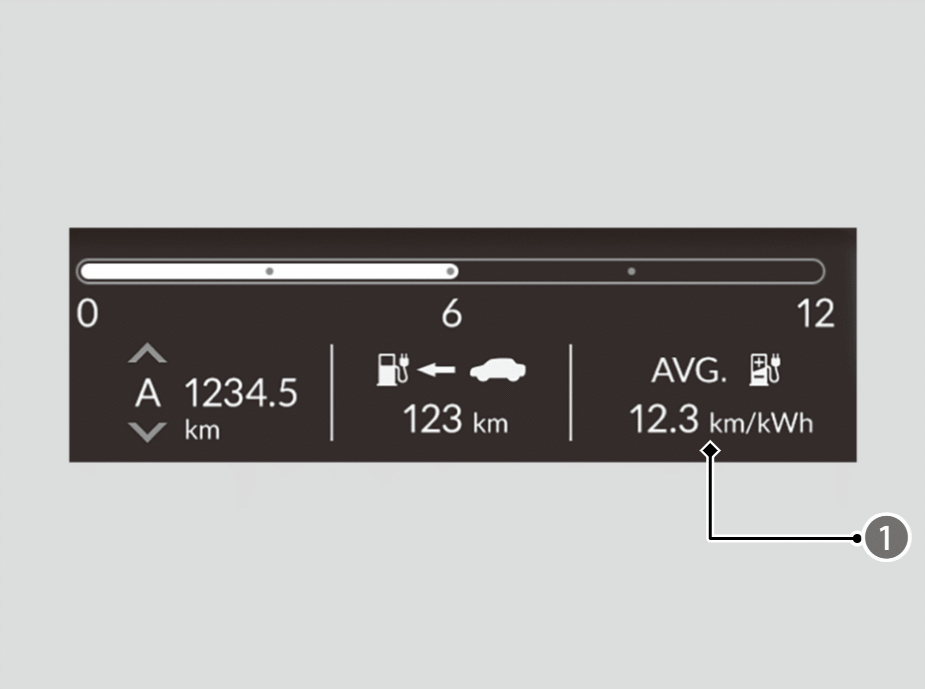
Average Fuel Economy
Shows the average energy consumption for trip meters A and B in set intervals.
- The average energy consumption displayed may differ from the amount consumed while actually driving.
- If it was reset while parked or driving at a low speed, calculation of energy consumption will start after you resume normal driving.
Average Speed
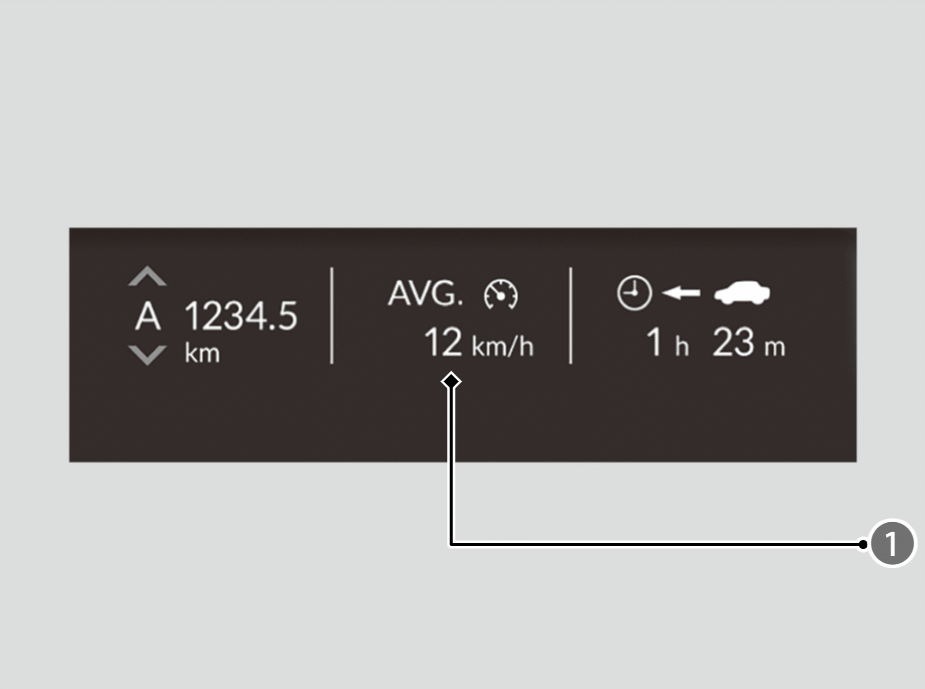
Average Speed
Shows the average speed since Trip A or Trip B was reset.
Elapsed Time
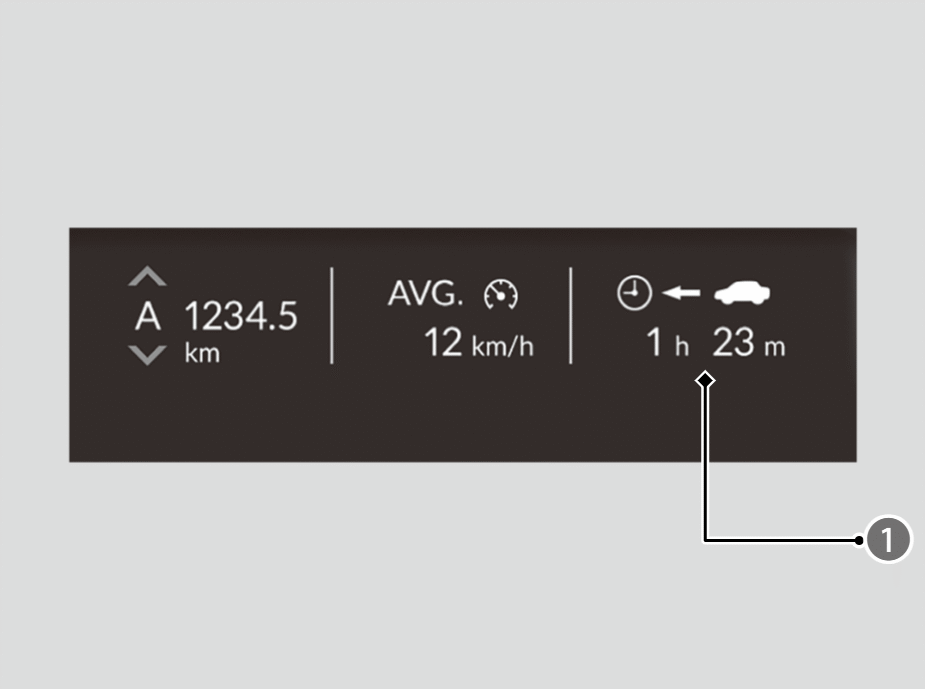
Elapsed Time
Shows the time elapsed since Trip A or Trip B was reset.
Audio
Shows the current audio information.
Phone
Shows the current phone information.
Navigation
The compass screen and turn-by-turn directions appear based on the driving guidance provided by Apple CarPlay or Android Auto.
- Navigation features may not be available for all devices or apps.
You can select whether to have the turn-by-turn display come on or not during the route guidance.
G-Meter
Displays the strength (G) and direction of the load that is applied to the vehicle during driving.
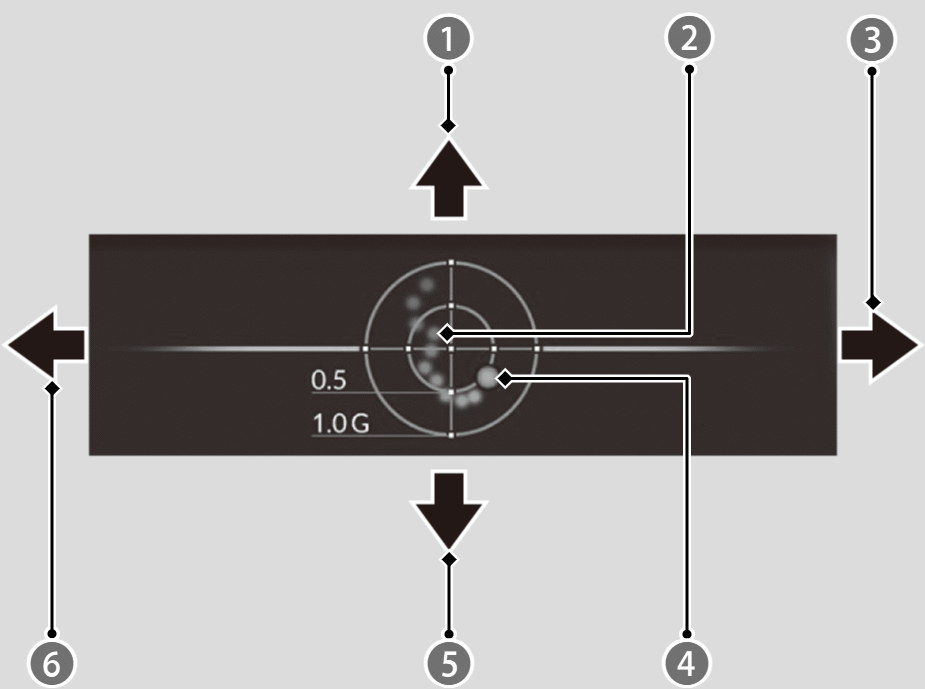
When decelerated while moving forward/When accelerated while reversing
Lateral forces of the past three seconds (white)

When steering to the left

Real-time lateral force (red)

When accelerated while moving forward/When decelerated while reversing

When steering to the right
Seat Belts
Occurs, under specified conditions, when seat belts are latched or unlatched.
Tyre Pressure Monitor
Shows each tyre’s pressure.
Safety Support
Safety Support indicates the operating status of the following systems.
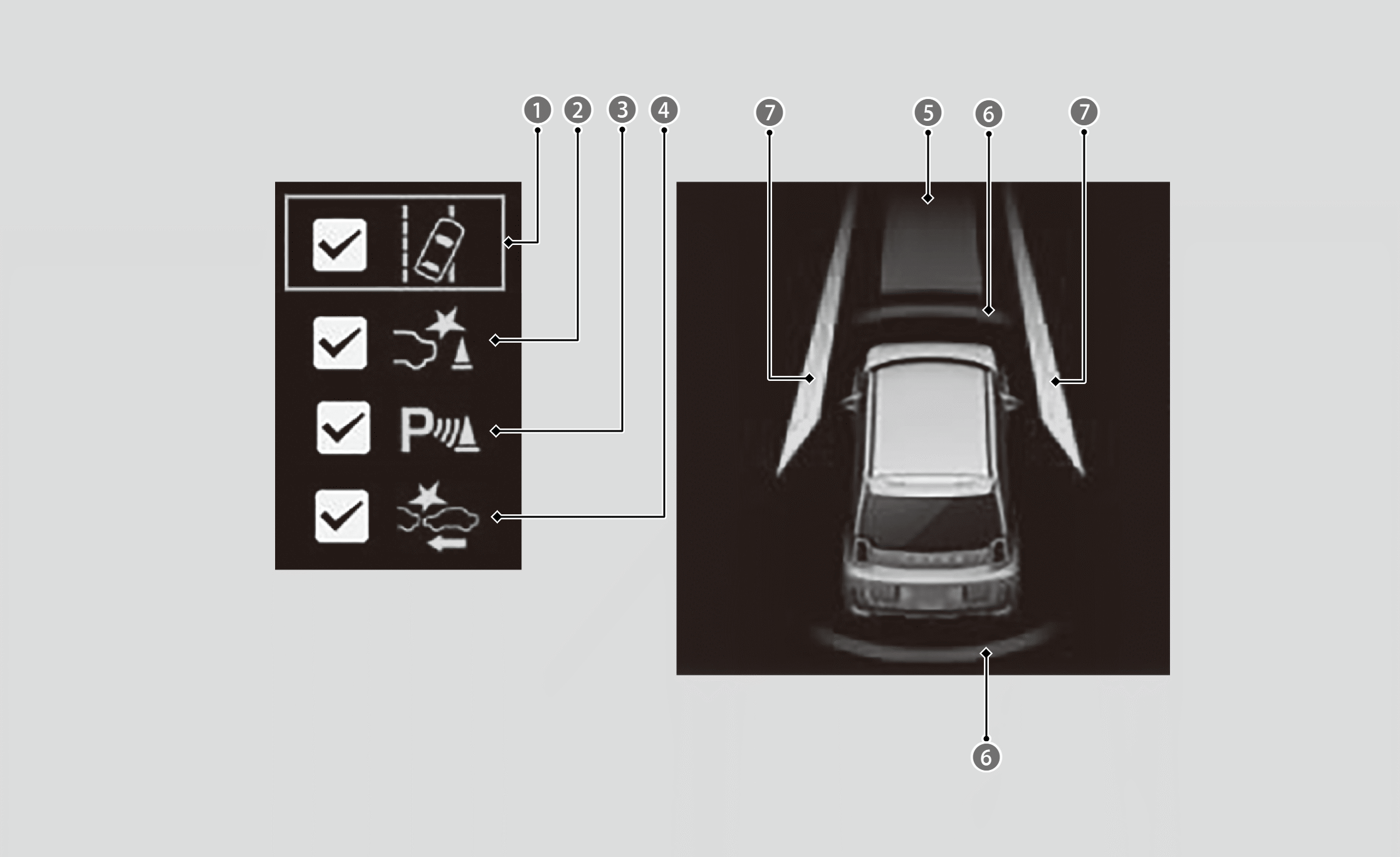
Road Departure Mitigation System
Low Speed Braking Control
Parking Sensor Warning
CMBS
Operating Status for CMBS
Operating Status for Parking Sensor Warning/Operating Status for Low Speed Braking Control

Operating Status for Road Departure Mitigation System
The following colours indicate the status of any of the above-mentioned systems:
- Green: The system is on.
- Grey: The system is off.
- Amber: There is a problem with the system.
- To turn each system on or off, first rotate the left selector wheel to switch displays. From the next display, you can select which system to turn on or off.
About Road Departure Mitigation System
About Low Speed Braking Control
- When all features are ON, the
 safety support indicator lights up in green. It lights up in green/grey when one or some of the features are ON, and it lights up in grey when all features are OFF.
 - When CMBS is OFF, the
 Collision Mitigation Braking System (CMBS) indicator (grey) also lights up. When the Road Departure Mitigation system is OFF, the
 Road Departure Mitigation indicator (grey) also lights up.
 - See below if the indicator lights up in amber.
Collision Mitigation Braking System (CMBS) Indicator (Amber)
Road Departure Mitigation Indicator (Amber)
Road Departure Mitigation System Steering Assist Auto OFF Indicator
- Even when the Low Speed Braking Control icon is green, if the Rear Sensor Setting is turned off, the brake assist will not operate when reversing.
- Even when the parking sensor warning icon is green, if the Rear Sensor Setting is turned off, the rear parking sensor will not operate when reversing.
Calendar
Shows the date and clock.
- The calendar background is selected randomly.
Adjusting the date
Manual date adjustment is not necessary because the clock is using satellite information.
Calendar setup
You can change the calendar background, birthday setting, and anniversary setting.
When the transmission is in P, roll the left selector wheel to select the setting you want to change.
- The system will display a message when the power mode is set to ON on a selected date.
Brightness Setting
Displays the adjustment for instrument panel brightness.
When the power mode is in ON, you can use the left selector wheel to adjust instrument panel brightness.
- Brighten: Roll the left selector wheel up.
- Dim: Roll the left selector wheel down.
Press the left selector wheel to exit.
- The brightness of the gauge is automatically adjusted depending on the ambient brightness.
- The brightness decreases when the ambient light is dark.
- The brightness increases when the ambient light is bright.
- You can change the setting even when the ambient lighting is bright, but the brightness of the gauge won’t change.
VSA Mode
You can turn the VSA on or off.
Roll the left selector wheel to scroll to select Reduce traction control, then press the left selector wheel to check or uncheck it.
Display Settings
You can choose which icons to display on the home screen.
- Roll the left selector wheel until Display Settings is selected, then press the left selector wheel.
- Roll the left selector wheel.
- Roll the left selector wheel to scroll between icons, then press the left selector wheel to check or uncheck them.
- Contents that are grey cannot be removed.
- When you customize settings, shift to P.
Information
You can check if there are any active warning messages.
- If there are multiple messages, you can roll the left selector wheel to see other messages.
- When there is a warning message, the
 system message indicator lights up.
Tyre Angle Monitor
In the following situations, when the vehicle speed is about 15 km/h (9 mph) or less, the direction of the tyres is displayed in 7 stages based on the angle of the tyres and how much the steering wheel is rotated:
- The steering wheel is turned over 90 degrees to the left or right and the power mode is set to ON.
- The steering wheel is turned over 90 degrees to the left or right and the shift position is changed to D.
- The shift position is in R.
You can turn the Tyre Angle Monitor display on and off.