
Connecting a Device
With a connected device you can play various files, as well as use Apple CarPlay or Android Auto on the audio/information screen.
- Depending on the app used, device battery may decrease even with a wired connection.

About Wired Connections
Connect a device or USB flash drive to the USB charging/connector port ( ).
).
- You may need to operate the device.
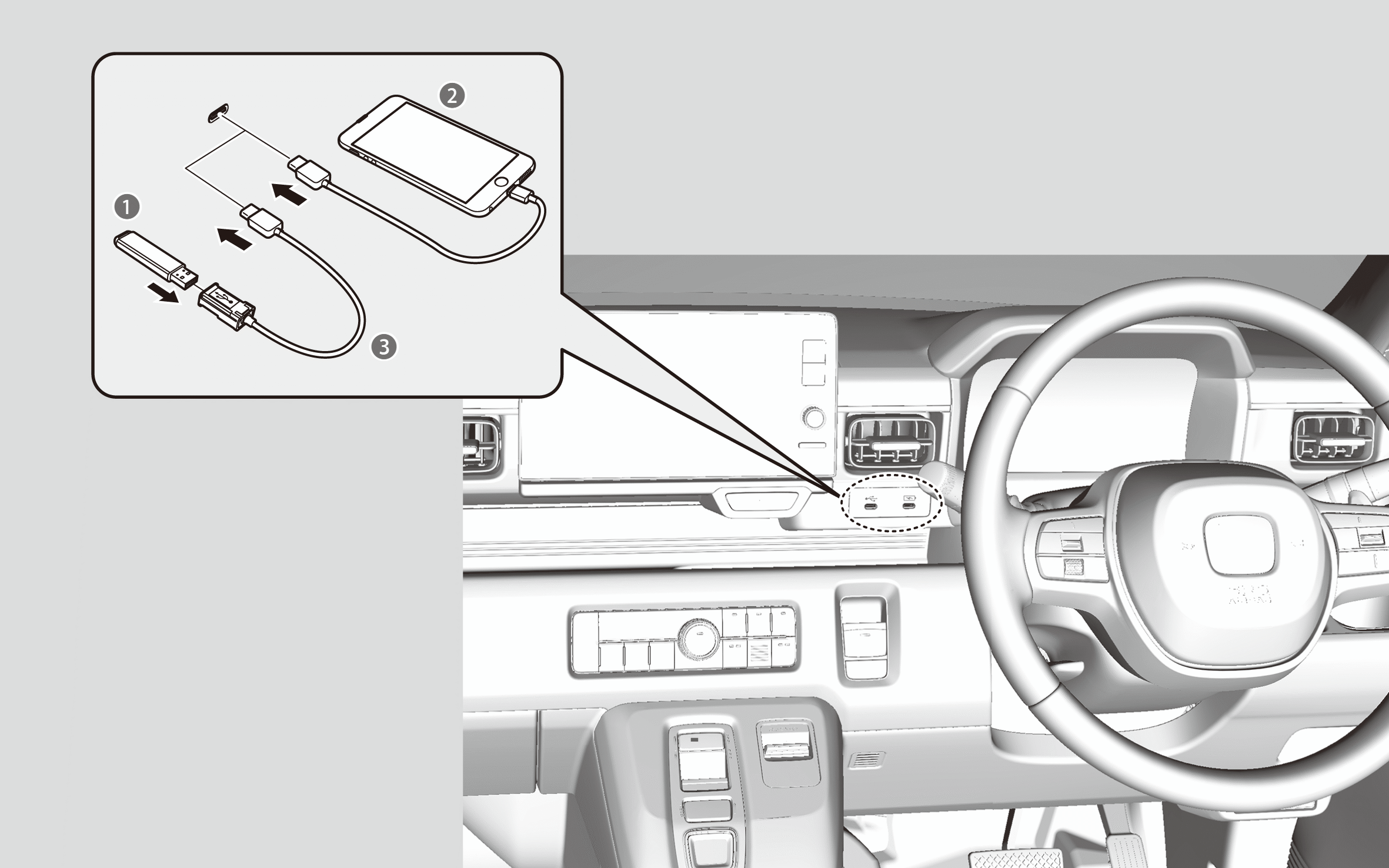

USB Flash Drive

Device

USB Cable
About Wireless Connections
You can modify
Once you have paired a device, you can see it displayed on the screen with one or more of the following icons indicating available features:
 : The device is compatible with
 : The device is compatible with Apple CarPlay.
 : The device is compatible with Android Auto.
Device Pairing Tips:
- Up to six devices can be paired.
- Your device’s battery may drain faster when it is paired to the system.
You can turn
- Press the
 (Home) button.
 - Select General Settings.
- Select Connections.
- Select Manage Device Connections.
- Select Options.
- Select Bluetooth.
- Select ON.
To pair a device
- Press the(Home) button.
- Select General Settings.
- Select Connections.
- Select Manage Device Connections.
- If your device has already been paired to the system, the device name appears on the list.
- Select + Connect New Device.
- Make sure your device is in search or discoverable mode, then select Search for Devices.
- HFT automatically searches for a
Bluetooth ® device.
- HFT automatically searches for a
- Select your device when it appears on the list.
- If your device still does not appear, search for
Bluetooth ® devices using your device. From your device, search for Vehicle Name. - Confirm if the pairing code on the audio/information screen and your device matches. This may vary by device.
- If your device still does not appear, search for
- On your device, give pairing permission.
To change the currently paired device
- Press the(Home) button.
- Select General Settings.
- Select Connections.
- Select Manage Device Connections.
- Select the,, oricon.
- When theoricon is selected, theicon cannot be selected.
- You can set the connected device priority. Check the box on the device you want to prioritize.
- When the
- To pair other devices, select + Connect New Device from the
Bluetooth ® screen.
To delete a paired device
- Press the(Home) button.
- Select General Settings.
- Select Connections.
- Select Manage Device Connections.
- Select a device you want to delete.
- Select Delete Device.
- A confirmation message appears on the screen.
- Select Delete.