
About Media Playback
By connecting a device to the audio system, you can play audio or video files.

- Available operating functions vary on models or versions. Some functions may not be available on the vehicle’s audio system.
- Depending on the connected device, the name of the artist, album, or track may not appear correctly.
About Play Modes
Shuffle/Repeat
Repeatedly select the shuffle or repeat icon until you find a play mode option of your preference.
・ Shuffle off: Shuffle mode to off.
・ Shuffle all: Plays all available songs available in random order.
・ Shuffle in folder*1: Plays all songs in the current folder in random order.
・ Repeat off: Repeat mode to off.
・ Repeat track: Repeats the current song.
・ Repeat all: Repeats all songs (in the current folder*1/group*2).
*1: When playing a song via USB device
*2: When playing a song using
Audio Playback via Wired Connection
Connect a device, such as an iPod or iPhone to the USB charging/connector port, then select the USB icon.
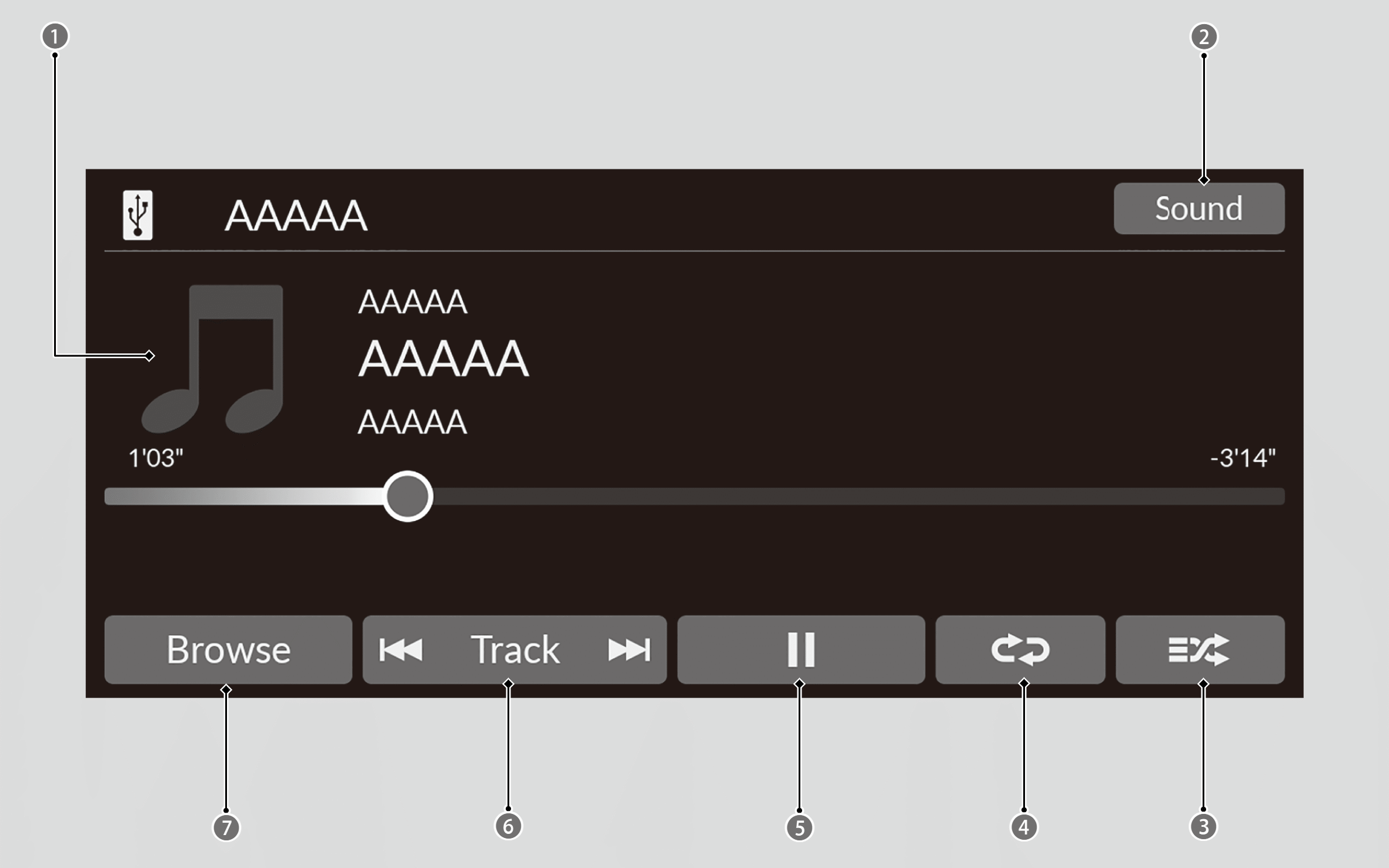

Cover Art

Sound Icon

Shuffle Icon

Repeat Icon

Play/Pause Icon

Track Icons

Browse Icon
If a smartphone is connected via Apple CarPlay or Android Auto, the USB source will be unavailable and audio files on the phone will be playable only within Apple CarPlay or Android Auto.
Track icon
Select or
or to change songs.
Select and hold to move rapidly within a song.
How to select a song from the music search list
- Select Browse.
- Select a search category.
- Continue making selections until you find the song of your choice.
Media Playback via USB Device
Connect your USB flash drive to the USB charging/connector port, then select the USB icon.
The audio system can read certain USB drive formats to play audio/video files.
Compatible iPod, iPhone, and USB Flash Drives
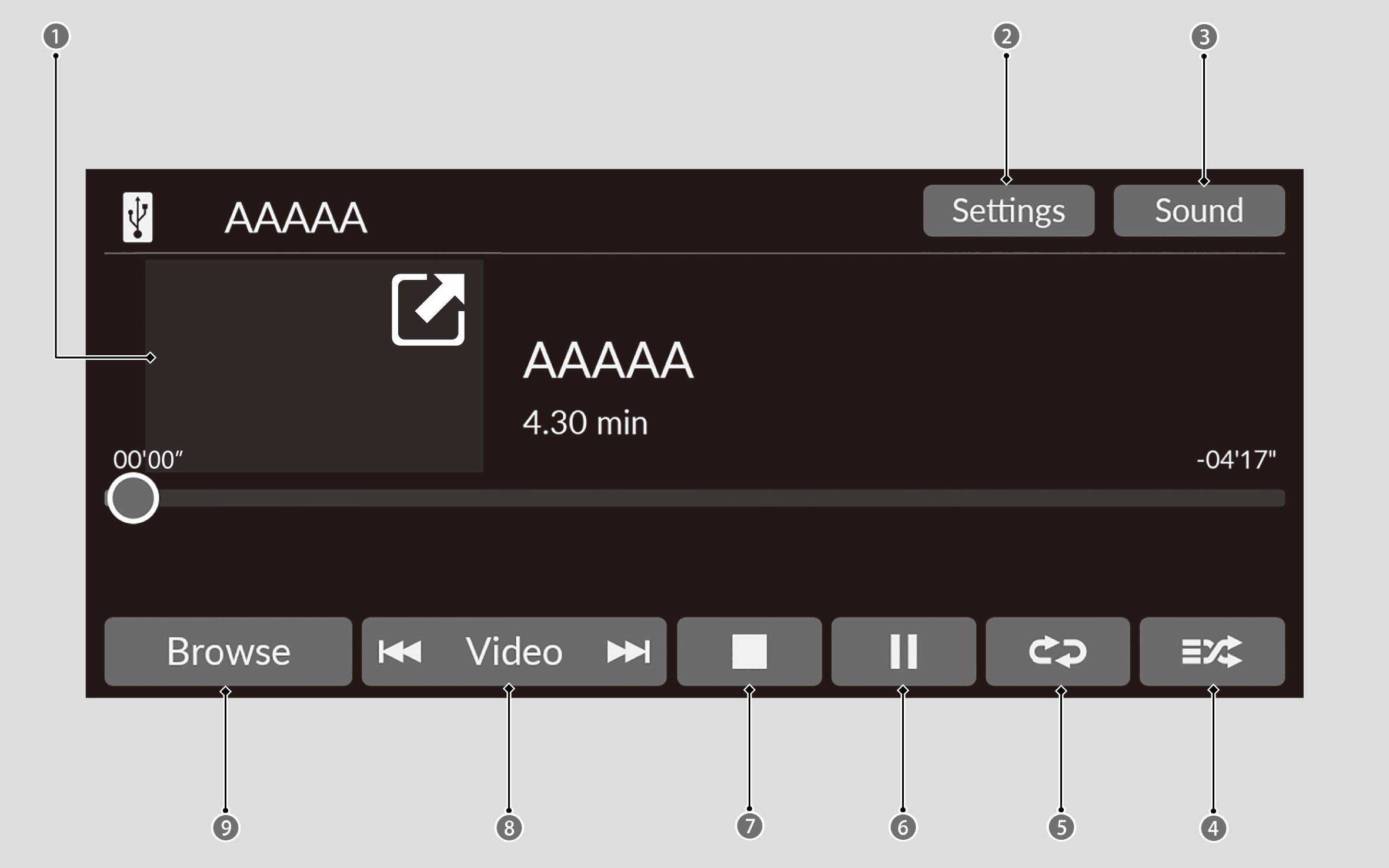
Cover Art*1/Mini Player*2
Settings Icon*2
Sound Icon
Shuffle Icon
Repeat Icon
Play/Pause Icon
Stop Icon*2

Track*1/Video*2 Icons

Browse Icon
*1: When playing an audio file
*2: When playing a video file
Track*1/Video*2 icons
Selectorto change files.
Select and hold to move rapidly within a file.
*1: When playing an audio file
*2: When playing a video file
How to select a file/video from the music search list
- Select Browse.
- Select Current Playlist, Music, or Video.
- Continue making selections until you find the file of your choice.
Settings (When playing a video file)
Changes the USB settings when playing a video file.
- Select Settings.
- Select an option.
- Image Settings: Changes the brightness of the audio/information screen. To reset the settings, select Default. (Brightness/Contrast/Black Level/Colour/Tint).
- Aspect Ratio: Selects the display mode with a different aspect ratio. (Original/Normal*1/Full/Zoom)
- Overlay Clock Location: Changes the clock display layout. (Upper right*1/ Upper left/Lower right/Lower left/OFF)
*1: Default Setting
Shrink/expand a video
 : Expand a video screen.
 : Shrink a video screen.
Audio Playback via
Your audio system allows you to listen to audio files from your
This function is available when the phone is paired and connected to the vehicle’s Hands-Free Telephone (HFT) system.
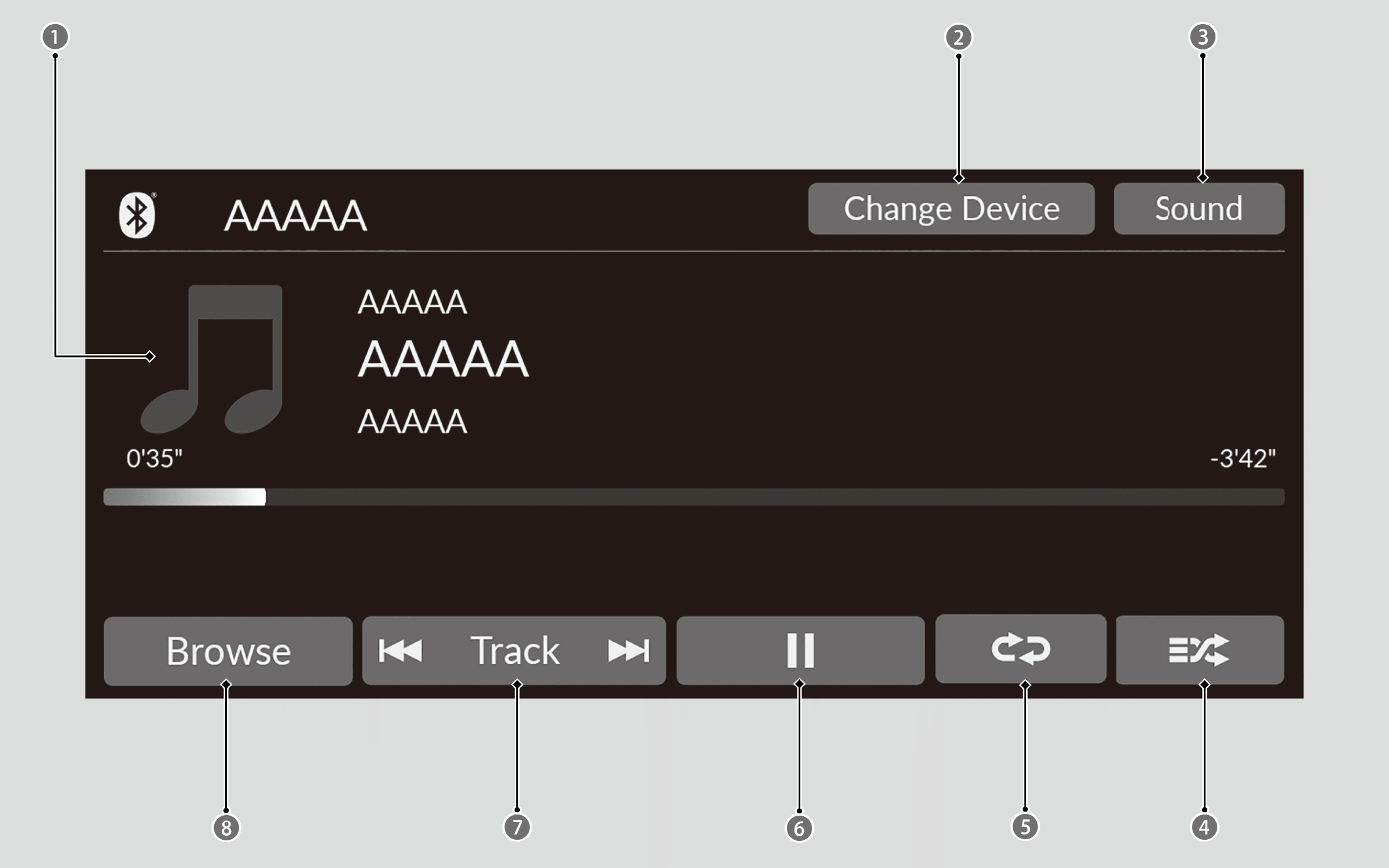
Cover Art
Change Device
Sound Icon
Shuffle Icon
Repeat Icon
Play/Pause Icon
Track Icons
Browse Icon
- Not all
Bluetooth -enabled phones with streaming audio capabilities are compatible with the system. To check if your phone is compatible, ask a dealer. - Only one phone can be used with HFT at a time. When there is more than one paired phone in the vehicle, the latest paired phone the system finds is automatically connected.
- If more than one phone is paired to the HFT system, there may be a delay before the system begins to play.
- If a phone is currently connected via Apple CarPlay or Android Auto,
Bluetooth ® Audio from that phone is unavailable. - To play the audio files, you may need to operate your phone. If so, follow the phone manufacturer’s operating instructions.
- Switching to another mode pauses the audio files playing from your phone.
- You can change the connected phone by selecting Change Device.
Track icon
Selectorto change songs.
Select and hold to move rapidly within a song.
How to select a song from the music search list
- Select Browse.
- Select a search category.
- Select an item.