
Connecting a Device
With a connected device you can play various files, as well as use Apple CarPlay or Android Auto on the audio/information screen.
- Depending on the app used, device battery may decrease even with a wired connection.

About Wired Connections
Connect a device to the USB charging/connector port ( ).
).
- You may need to operate the device.
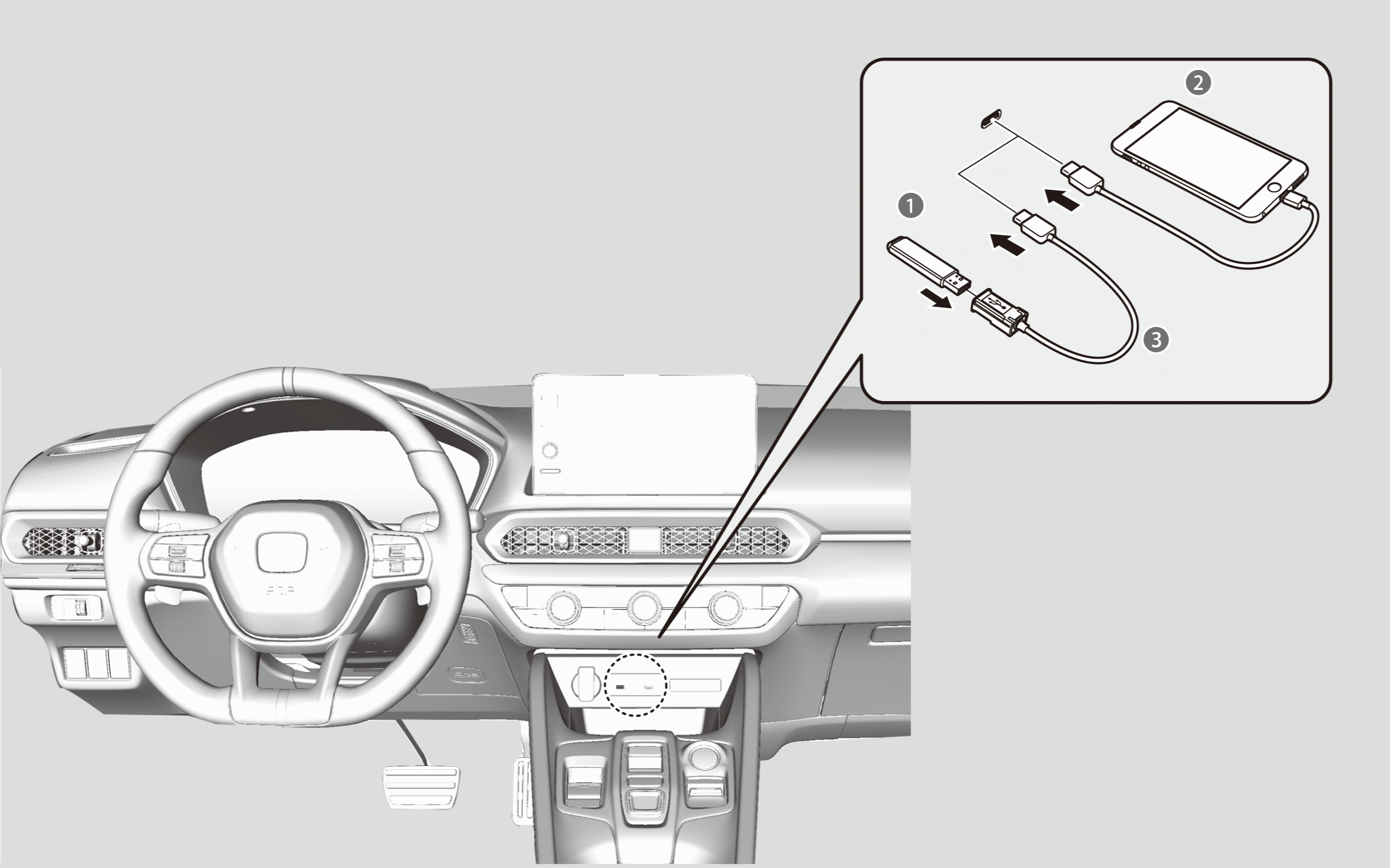

USB Flash Drive

Device

USB Cable
About Wireless Connections
You can modify
Once you have paired a device, you can see it displayed on the screen with one or more of the following icons indicating available features:
 : The phone is compatible with
 : The phone can be used with HFT.
 : The phone is compatible with Apple CarPlay.
Phone Pairing Tips:
- Up to six phones can be paired.
- Your phone’s battery may drain faster when it is paired to the system.
You can turn
- Press the
 (Home) button.
 - Select General Settings.
- Select Connections.
- Select Bluetooth.
- Select Options.
- Select Bluetooth.
- Select ON.
To pair a mobile phone
- Press the(Home) button.
- Select General Settings.
- Select Connections.
- Select Bluetooth.
- If your phone has already been paired to the system, the device name appears on the list.
- Select Connect New Device.
- Make sure your phone is in search or discoverable mode.
- Select Honda HFT from your phone.
- If you want to pair a phone from this audio system, select Search for Devices, and then select your phone when it appears on the list.
- The system gives you a pairing code on the audio/information screen.
- Confirm if the pairing code on the audio/information screen and your phone matches. This may vary by phone.
- Select desired functions and then select Connect.
- A notification appears on the screen if pairing is successful.
- Select OK.
To change the currently paired phone
- Press the(Home) button.
- Select General Settings.
- Select Connections.
- Select Bluetooth.
- Select(audio),(phone), or(Apple Carplay).
- andcan be selected simultaneously, however, whenis selected,andcannot be selected.
- If you want to cancel the automatic
Bluetooth ® connection, uncheck all icons. - You can set the connected phone priority. Check the box on the phone you want to prioritize.
- Select Apply.
- To pair other phones, select + Connect New Device from the Bluetooth screen.
To delete a paired phone
- Press the(Home) button.
- Select General Settings.
- Select Connections.
- Select Bluetooth.
- Select a phone you want to delete.
- Select Delete.
- A confirmation message appears on the screen.
- Select Delete.